HTML to PDF Online for Free
Convert HTML to PDF instantly with this free online tool. Create high-quality, pixel-perfect PDF documents from HTML in any browser – Chrome, Firefox, or Edge.
Or drag & drop your file to convert HTML file to PDF format
 No installation or registration required.
 Turn HTML into high-quality PDFs.
 Lightning-fast conversion in one click.
How to convert HTML to PDF online?
Convert HTML files to high-quality PDF in 3 easy steps.
Upload your HTML file to this online HTML to PDF converter.
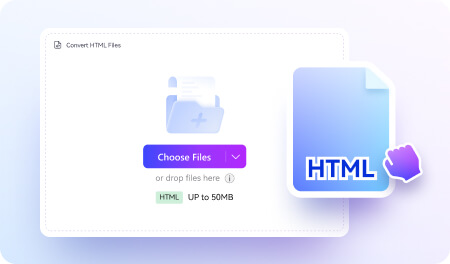
Click Convert to transform the HTML file to PDF format.
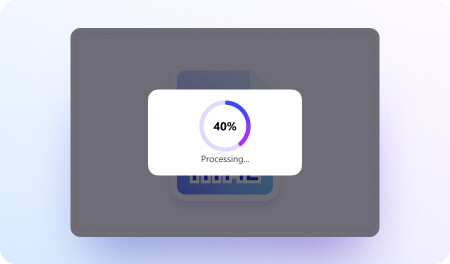
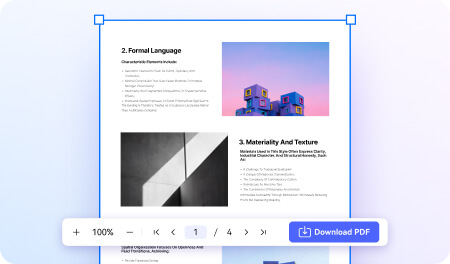
Download the converted PDF file back to your device.
Why choose our online HTML to PDF Converter?

Free Online HTML to PDF Converter
Convert HTML to PDF for free directly in your browser. No installation or signup required.

Accurate Formatting Conversion
Convert HTML to PDF documents while preserving original layout, images, and links.

Secure HTML to PDF Conversion
Convert HTML to PDF safely with encrypted processing to protect your files and data.

Multiple Conversion Modes
Convert HTML files, web pages (URL to PDF), or raw HTML code to PDF in one flexible online tool.

Support Various HTML Formats
Convert HTML, MHTML, and XHTML to PDF documents seamlessly with broad format support.

PDF to HTML Conversion
Convert PDF back to HTML quickly with reliable formatting and compatibility.
Free HTML to PDF Converter for everyone.
Easily convert HTML to PDF online and create high-quality PDF documents for sharing, presentations, and archiving.
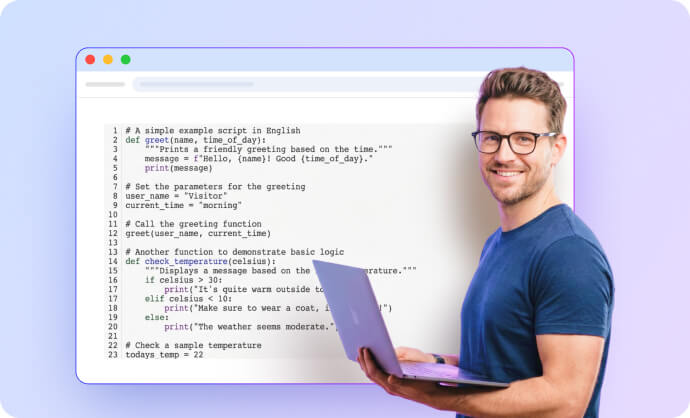
Convert HTML Prototypes for Easy Review.
Developers can turn local web pages or HTML prototypes into fixed, non-editable PDFs, making it easy to share clean previews with stakeholders.
Create Polished PDFs for Campaign Presentations.
Marketers can transform landing pages and campaign previews into professional PDFs for client reports and presentations.


Simplify Assignment Submission.
Students can quickly and easily convert HTML projects or web-based reports into PDF files to meet submission requirements.
FAQs about converting HTML to PDF.
-
Which is the best HTML to PDF converter?
The best HTML to PDF converter is one that combines accurate formatting, fast performance, and flexible input options. Tools like HiPDF HTML to PDF stand out because they allow you to convert HTML to PDF online for free while preserving layout, images, and links.
When choosing the best HTML to PDF converter online, look for:
- Accurate conversion: Keeps original HTML layout, styles, and structure
- Multiple input options: Convert HTML files, URLs to PDF, or HTML code to PDF
- Free and online access: No installation required, works in any browser
- Fast processing: Convert HTML to PDF instantly
- Secure handling: Protects your files during conversion
A reliable HTML to PDF converter should make it easy to convert HTML files to PDF format quickly while maintaining high-quality output.
-
Is it possible to control page breaks when converting HTML to PDF?
Yes. You can control page breaks when converting HTML to PDF by using CSS styles before conversion.
When using an HTML to PDF converter, page breaks are typically handled based on the structure and styling of your HTML content. To manage this more precisely, you can define page breaks using CSS rules such as:
- page-break-before
- page-break-after
- page-break-inside
- break-before / break-after (modern CSS)
For example, adding a rule like page-break-before: always; allows you to force a new page in the final PDF.
Key points when converting HTML to PDF online:
- Page breaks depend on your HTML and CSS setup
- Well-structured HTML improves PDF layout control
- Most HTML to PDF converters will respect defined print styles
Using proper CSS ensures better control over how your HTML document is split into pages in the final PDF.
-
How to convert HTML to PDF in Chrome?
You can convert HTML to PDF in Chrome using the built-in print feature or an online HTML to PDF converter, like HiPDF.
Method 1: Use Chrome Print (Save as PDF)
- Open the HTML file or web page in Chrome
- Press Ctrl + P (Windows) or Cmd + P (Mac)
- Select Save as PDF as the destination
- Click Save to download the PDF
Method 2: Use an online HTML to PDF converter
You can also convert HTML to PDF online for more control and better formatting:
- Upload an HTML file to an HTML to PDF converter
- Convert a URL to PDF directly from a web page
- Convert HTML code to PDF with preserved layout
Online tools like HiPDF allow you to convert HTML to PDF quickly while keeping styles, images, and links intact.
-
How to convert MHTML to PDF?
You can convert MHTML to PDF using an online HTML to PDF converter that supports MHTML files, such as the HiPDF Online HTML to PDF Converter.
Steps to convert MHTML to PDF online:
- Upload your MHTML file to the HiPDF HTML to PDF converter
- Click Convert to start the conversion
- Download the converted PDF file
MHTML files contain full webpage content (HTML, images, and resources), so tools like HiPDF can accurately convert MHTML to PDF while preserving layout, styles, and links.
Key points:
- Supports HTML, MHTML, and XHTML to PDF conversion
- Keeps original webpage formatting in the PDF
- Works online with no installation required
Using HiPDF Online HTML to PDF Converter is a simple and reliable way to convert MHTML files to high-quality PDF documents.
-
What is XHTML and how to convert it to PDF?
XHTML (Extensible HyperText Markup Language) is a stricter, XML-based version of HTML that follows more precise syntax rules, making it more consistent and machine-readable.
You can convert XHTML to PDF using an online HTML to PDF converter like the HiPDF Online HTML to PDF Converter.
Steps to convert XHTML to PDF:
- Upload your XHTML file to the converter
- Click Convert to transform XHTML to PDF format
- Download the generated PDF document
Key features when converting XHTML to PDF:
- Preserves layout, structure, and styling
- Supports HTML, XHTML, and MHTML to PDF conversion
- Works directly in your browser with no installation
Using HiPDF Online HTML to PDF Converter makes it easy to convert XHTML files to PDF while maintaining high-quality formatting and compatibility.
-
What is the best way to convert HTML to PDF on Mac?
The best way to convert HTML to PDF on Mac is to use either the built-in browser print feature or an online HTML to PDF converter like HiPDF.
Option 1: Use Safari or Chrome (Save as PDF)
- Open the HTML file or web page in Safari or Chrome
- Press Cmd + P
- Choose Save as PDF
- Save the file to your Mac
Option 2: Use an online HTML to PDF converter (recommended for better results)
Online tools provide more flexibility and better formatting control:
- Upload an HTML file to convert HTML to PDF online
- Convert a URL to PDF directly from a web page
- Convert HTML code to PDF with preserved layout
Tools like HiPDF Online HTML to PDF Converter help you convert HTML to PDF on Mac with accurate formatting, fast processing, and no installation required.
-
How to convert HTML to PDF with images?
You can convert HTML to PDF with images by using an HTML to PDF converter that preserves embedded media and layout.
Steps to convert HTML to PDF with images:
- Upload your HTML file or enter a URL in an HTML to PDF converter
- Click Convert to process the file
- Download the PDF with images included
To ensure images are preserved correctly:
- Use absolute image paths (not broken or local-only links)
- Make sure all images are fully loaded before conversion
- Use a reliable tool that supports full HTML rendering
Tools like HiPDF Online HTML to PDF Converter can convert HTML to PDF with images, keeping layout, graphics, and styles intact.
Key capabilities:
- Convert HTML files, URLs, or HTML code to PDF
- Preserve images, links, and formatting
- Convert HTML to PDF online with no installation required
Using a proper HTML to PDF converter ensures your final PDF includes all images exactly as displayed on the web page.

Free online PDF tools for all purposes

HiPDF Online Tools rating:

4.8
(188,357 Votes)Rate us after uploading & downloading 1 file! We’ve already perfectly processed 307,292,373 files with a total size of 10,124 TB
Backend Developer
I work with HTML files pretty often, especially for documentation. This tool does a good job keeping the layout and styles consistent when converting to PDF. It’s straightforward to use and fits well into my usual workflow.
Marketing Manager
I use it to turn web pages into PDFs when sharing drafts with clients. It’s easy to use and doesn’t require any setup, which I appreciate. The formatting usually comes out clean, so I don’t have to spend extra time fixing things.
College Student
I needed a quick way to convert a webpage into a PDF for a class project and found this tool. It was really simple to use, and I got the file in just a few seconds. Super convenient when you’re short on time.