
Translate PDF to Arabic Online
Accurate AI PDF translator for Arabic - Quickly translate your PDF to Arabic using AI for free.
Upload your document, select Arabic, and translate from English or other languages to Arabic in seconds.
 Translate PDF to Arabic for free
 Accurate and fast PDF translation
 Safeguard your file security and privacy
How to Translate PDF to Arabic for Free:
Follow these simple steps to translate a document from English to Arabic or convert any PDF into Arabic:
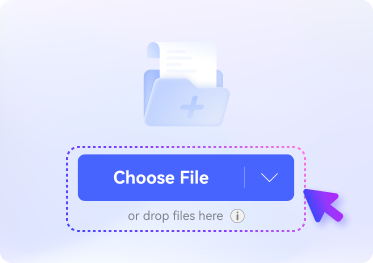
Upload your PDF to the online AI PDF to Arabic translator.
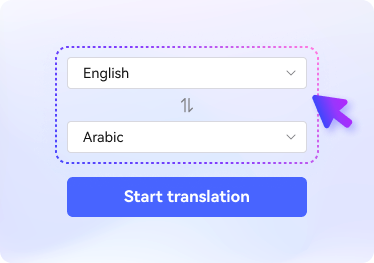
Choose "Arabic" as the target language.
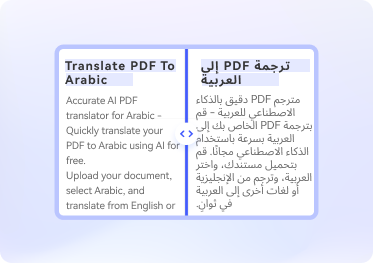
Click "Translate" to begin the English-to-Arabic or any language-to-Arabic PDF translation.
FAQs About PDF Translate to Arabic
-
What is the best free PDF translator for English to Arabic?
Several tools support English-to-Arabic PDF translation, though only a few specifically focus on PDF formats. Here are some great free options:
Google Translate: A highly popular translator with extensive language support for text, images, and documents. It's free to use and can convert English PDF files to Arabic while retaining the original formatting.
DocTranslator: A dedicated document translation tool that supports converting PDFs from English to Arabic. Upload your file, select the languages, and download the translated PDF.
HiPDF's AI PDF Translator: Specially designed for PDFs, this AI-powered tool ensures quick detection and accurate translation. It supports over 50 languages and allows you to upload your PDF and download the Arabic translation in seconds.
-
Does Google Translate support PDF translations to Arabic?
Yes, Google Translate supports translating PDFs to Arabic. Use its "Documents" feature to upload your file, choose English as the source language and Arabic as the target language, and receive the translated content instantly. While the formatting is generally preserved, it may vary for complex layouts
-
Can I translate scanned documents into Arabic?
Yes, you can translate scanned documents into Arabic. However, you must first use Optical Character Recognition (OCR) software to convert the scanned images into editable text. Tools like SmallPDF, SodaPDF, or HiPDF's OCR Converter can help. Once converted, you can use a translator like Google Translate or HiPDF's AI PDF Translator to complete the Arabic translation.
-
How can I translate a Word document from English to Arabic?
You can use Google Translate's Document feature to translate a Word document from English to Arabic. Here are the steps: Google Translate's Document feature is an excellent option for translating Word documents. Follow these steps:
Step 1. Open Google Translate and switch to the "Documents" tab.
Step 2. Drag and drop your Word file into the upload area or click "Browse your files" to select it.
Step 3. Set the source language to "English" and the target language to "Arabic."
Step 4. Click "Translate" to start the process. Once finished, click "Download translation" to save your translated Word document.
More than AI PDF Translator
Supercharge your PDF processing with AI
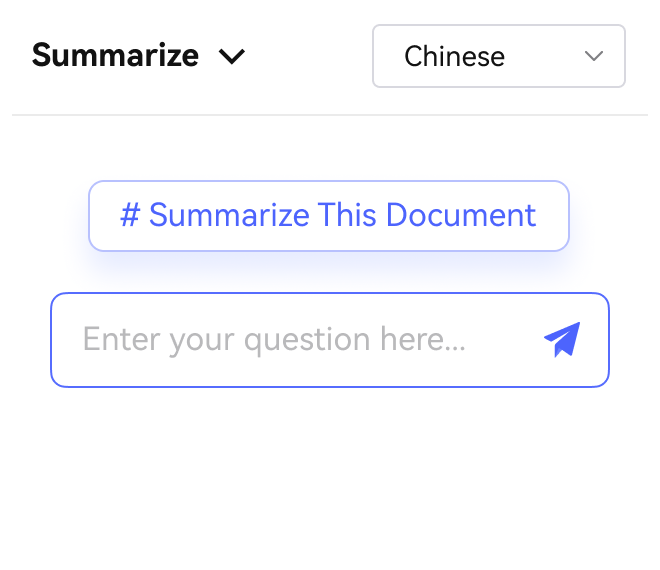


Free online PDF tools for all purposes

HiPDF Online Tools quality rating:

4.8
(188,357 Votes)You have to upload and download at least 1 file to rate! We've already perfectly processed 307,292,373 files with a total size of 10,124 TB