
White Out PDF Online Free
Easily white out text or sections from PDF documents with our free PDF Editor.
Simply use a white rectangle to cover any content in a PDF online for free.
 File security and privacy are guaranteed
 Free PDF Editor White Out
 Works on Mac, Windows, and mobile
How to white out on a PDF online for free
Use HiPDF's free PDF editor's Rectangle Tool to white out any content in your PDF in just 3 easy steps.
Upload your file to the free PDF editor Whiteout.
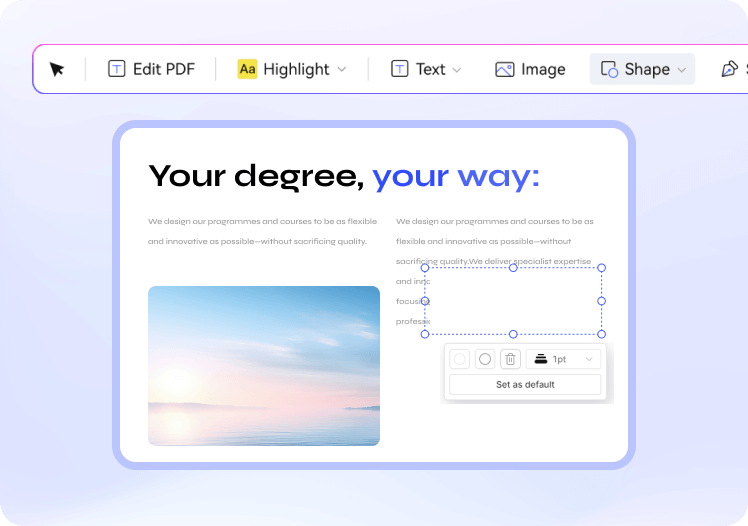
Select any shape from the 'Rectangle' option, set the shape fill to white, and remove the line border.

Use the rectangle to white out any content in the PDF, then export it.
Why choose our online free PDF editor to white out PDF

PDF Editor Whiteout works on any device
Whiteout text in PDF on a desktop, tablet, or mobile, anywhere and anytime.

Whiteout PDF Online for Free
Whiteout PDF documents for free up to 20 MB for 5 files without any charges.

Guaranteed File Security and Privacy
All uploaded files are permanently deleted within 60 minutes after processing.
FAQs about how to white out a PDF document
-
Can you white out texts in a PDF?
Yes, using various editing tools, you can white out text on a PDF. There are two common ways to white out text:
Using Rectangle Tools: Many PDF editors, such as PDFescape or SmallPDF, allow you to use the "Rectangle" or "Shape" tool to cover unwanted content with a white rectangle. This method conceals the text, but the original content remains beneath the white box and can be revealed if edited again.
Using Redaction Tools: In professional PDF editors like Adobe Acrobat, you can use the "Redaction" tool, which permanently removes the content. Once the text is redacted, it is not just hidden but entirely deleted from the document, making it impossible for anyone to uncover or restore the original text.
Both methods serve different purposes, depending on whether you want to conceal or permanently remove content from the PDF.
-
Does Adobe Acrobat have a whiteout tool?
Yes, Adobe Acrobat provides two effective ways to white out text or content in a PDF:
White Rectangle: You can use the "Rectangle" tool to place a white box over the area you want to hide. This method is quick and visually conceals the content, but the original text remains underneath the white box and can be uncovered if the file is edited again.
Redaction Tool: Adobe Acrobat has a "Redaction" tool for permanent removal. This tool lets you completely erase the selected text or area, making it impossible for anyone to recover the hidden content. The redaction feature ensures the content is permanently removed, particularly useful for sensitive information.
Both options offer flexibility depending on your editing needs, but the redaction tool is the best choice for secure removal.
-
How do you white out the PDF in Preview?
If you're using a Mac, you can white out text in a PDF using Preview:
Step 1. Open the PDF in Preview.
Step 2. Select the "Markup" toolbar.
Step 3. Use the "Shape" tool to add a white rectangle over the text you want to cover.
Step 4. Adjust the size and placement of the rectangle to match the text area.
Save your changes to create a whited-out version of your PDF. This method is free and works well for basic edits.
-
How do I white out part of a PDF for free?
You can use online tools like SmallPDF, PDFescape, or HiPDF to white out part of a PDF for free. Here's how to do it:
Step 1. Upload your PDF to one of these platforms.
Step 2. Select the "Edit" tool and choose the "Rectangle" or "Shape" feature.
Step 3. Draw a white rectangle over the text or section you want to hide.
Step 4. Save and download the edited PDF.
These tools offer an easy and quick solution for modifying PDF content without cost.
-
Is the whiteout text in a PDF permanent?Using a rectangle or shape tool, writing out text in a PDF is not permanent because the original content may still exist beneath the whiteout. You should use the "Redaction" feature available in Adobe Acrobat or other advanced PDF editors for a permanent solution. Redaction completely removes the selected text from the document, ensuring it cannot be recovered or viewed in the future.
-
How can I white out and add new text to a PDF?
After using a white rectangle to cover the unwanted text, you can easily add new text using the "Edit" tool in most PDF editors like Adobe Acrobat, SmallPDF, or Sejda. Once the text is white out:
Step 1. Select the "Add Text" or "Type" tool.
Step 2. Place your cursor over the whiteout area and enter your new text.
Step 3. Adjust the font and size to match the document's original format, then save your changes.
This allows you to replace old content with updated information seamlessly.

Free PDF tools process PDF tasks online

HiPDF Online Tools quality rating:

4.8
(188,357 Votes)You have to upload and download at least 1 file to rate! We've already perfectly processed 307,292,373 files with a total size of 10,124 TB
James M.
College Student
I should have added some incorrect data to an assignment. Using the free online PDF editor, I quickly fixed the errors by either directly editing the text or covering the incorrect sections with a white rectangle. It was fast and easy to whiteout and replace content in the PDF.
Sophia
Freelancer
While working on a client's project, I made some last-minute adjustments to a PDF proposal. This tool allowed me to easily remove old logos and replace them with updated branding without having to redo the entire document. It really saved me a lot of effort!
David
Office Worker
I handle a lot of forms at work, and there are times when pre-filled sections contain errors. The whiteout feature allowed me to seamlessly hide the incorrect details and replace them with accurate information. It's a simple yet powerful tool for quick edits.